How-To Guide6 min read
How to Import CSV & Excel Data into Invoices: Bulk Billing Guide (2026)
February 20, 2026
Quick answer
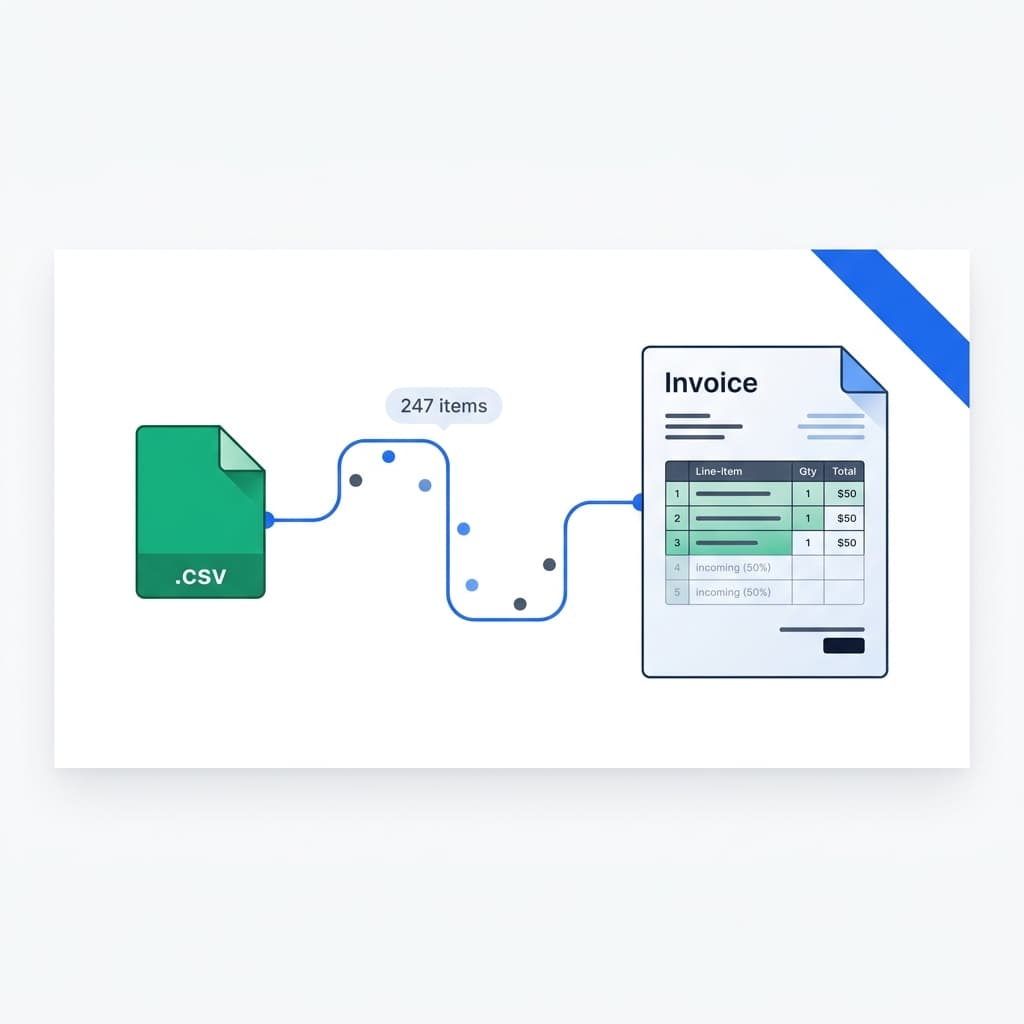
Stop manually entering line items one by one. Import your CSV or Excel data directly into invoices and quotations — save hours on bulk billing.
Why Bulk Import Matters
If you're an accountant, bookkeeper, or business that processes dozens of invoices with many line items, manually typing each entry is a massive time waste. SuiteZai's CSV and Excel import feature lets you upload hundreds of line items at once.
Supported Formats
- CSV files (.csv): Comma-separated values — the universal data exchange format.
- Excel files (.xlsx): Microsoft Excel spreadsheets — most accounting software can export to this format.
How to Prepare Your Data
Your CSV or Excel file should include columns for:
- Description: What the item or service is (e.g., "Web Design - Homepage")
- Quantity: Number of units (e.g., 1, 5, 40 hours)
- Unit Price: Price per unit (e.g., 85.00)
- Amount: Optional — if not provided, it's calculated from quantity × unit price
Step-by-Step Import Process
- Prepare your file: Organize your data in a spreadsheet with clear column headers.
- Open SuiteZai: Go to the invoice or quotation creator.
- Click Import: Look for the "Import CSV/Excel" button in the line items section.
- Upload your file: Select your .csv or .xlsx file.
- Map columns: SuiteZai automatically detects columns, but you can adjust the mapping if needed.
- Review: All line items appear in the form. Review totals and make any adjustments.
- Done: Choose a template and download your professional invoice with all imported data.
Use Cases for Bulk Import
- Monthly billing: Export time tracking data from tools like Toggl or Harvest, import into SuiteZai for client invoicing.
- E-commerce orders: Export order data from Shopify, WooCommerce, or other platforms and create bulk invoices.
- Contractor billing: Import material lists and labor hours from project management tools.
- Accounting: Batch-create invoices from bookkeeping data for end-of-month processing.
Tips for a Smooth Import
- Keep your column headers simple and consistent (Description, Qty, Price, Amount)
- Remove any empty rows or formatting from your spreadsheet before importing
- Use numbers only in price/quantity columns — no currency symbols
- Save your Excel file as .xlsx (not .xls) for best compatibility
Save Hours on Bulk Billing
Import your data in seconds instead of typing for hours. Try SuiteZai's CSV/Excel import on your next batch of invoices.
Related resources
Related Topics:
CSV invoice importExcel to invoicebulk invoicingimport line itemsaccountant invoicing tool